
December 10, 2025
From RAW to Print: My Complete Post-Processing Workflow
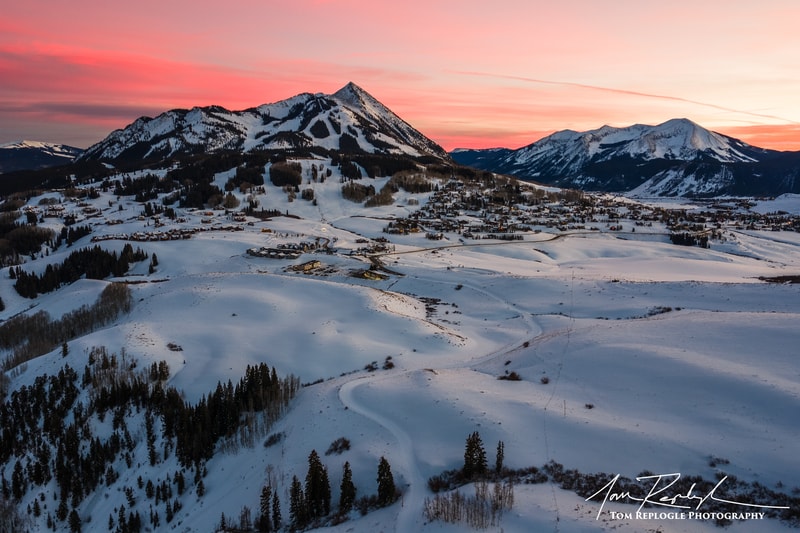
Post-processing can make or break a photograph. I’ve refined my workflow over thousands of images to be both efficient and effective, maintaining image quality while bringing out the vision I had when capturing the shot. Here’s exactly how I process landscape images from RAW import to final print.
Phase 1: Import and Culling (30 minutes per shoot)
I use Lightroom Classic for its combination of cataloging and processing power. My import process is standardized to save time:
Import Settings:
- Create dated folders with location names
- Apply copyright and contact IPTC data automatically
- Build 1:1 previews for faster culling
- Create a smart preview for mobile editing
Culling Process:
- First pass: reject obvious failures (focus, exposure disasters)
- Second pass: rate keepers (1-5 stars)
- Final pass: flag the absolute best for processing
I’m ruthless during culling. If an image doesn’t make me pause and feel something, it doesn’t get processed. This saves hours of wasted editing time.
Phase 2: Global Adjustments (10-15 minutes per image)
Every image gets these adjustments in this exact order:
Lens Corrections and Profile
Enable lens corrections first—this affects everything else. I also enable chromatic aberration removal automatically.
White Balance
I always shoot in daylight WB, then adjust in post. This gives me maximum flexibility.
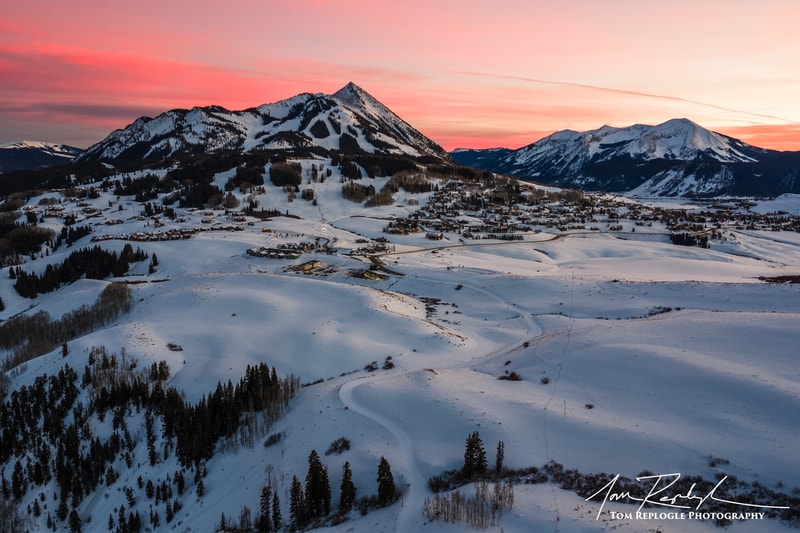 Proper white balance transforms the entire mood
Exposure and Contrast
- Set overall exposure first
- Add base contrast (usually +10 to +20)
- Adjust highlights (-30 to -70 typically)
- Recover shadows (+20 to +50)
- Set whites and blacks using Option/Alt key
Color and Saturation
- Adjust vibrance before saturation (more natural)
- Typical vibrance: +15 to +25
- Saturation: -5 to +10 (less is more)
Phase 3: Local Adjustments (20-40 minutes per image)
This is where images truly come alive. I use a combination of tools:
Graduated Filters
For sky enhancements:
- Darken overexposed skies
- Add clarity to clouds
- Enhance blue tones in sky
- Create depth with multiple gradients
Radial Filters
To draw attention:
- Brighten key foreground elements
- Add vignettes subtly
- Enhance specific areas of interest
Brush Adjustments
For precision work:
- Dodge and burn specific elements
- Enhance textures selectively
- Clean up distracting elements
- Add atmosphere
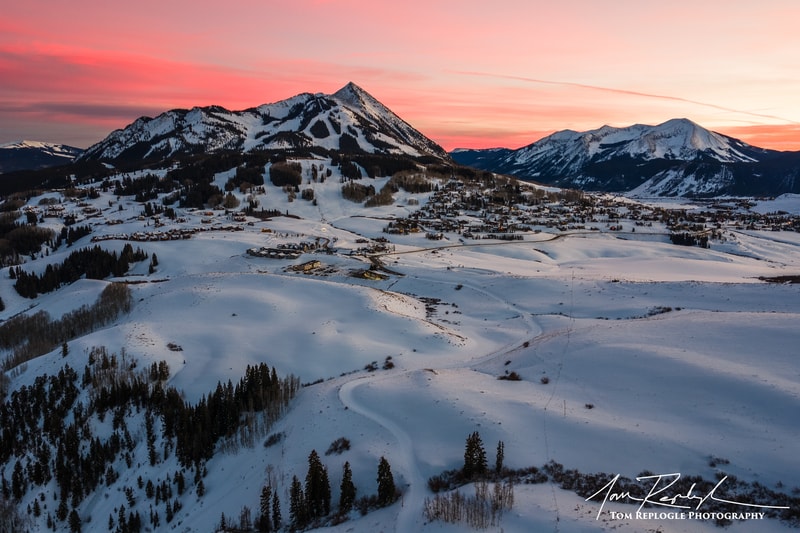 Local adjustments create depth and guide the viewer’s eye
Phase 4: Color Grading (10-15 minutes)
The HSL panel is powerful but dangerous. My approach:
Hue Adjustments:
- Shift blues toward cyan for cleaner skies
- Move oranges toward yellow for warmer tones
- Adjust greens toward yellow for natural foliage
Saturation Refinements:
- Reduce blues slightly (prevent oversaturation)
- Enhance oranges (for golden hour glow)
- Subtly boost targeted colors
Luminance Control:
- Darken blues (adds depth to skies)
- Brighten yellows and greens (lifts landscapes)
- Use carefully—easy to go too far
Phase 5: Sharpening and Noise Reduction
This happens last in Lightroom:
Sharpening:
- Amount: 60-80 for landscapes
- Radius: 0.8-1.2
- Detail: 50-70
- Masking: 60-90 (hold Option/Alt to visualize)
Noise Reduction:
- Only if ISO was 800+
- Luminance: 20-40 max
- Color: 25-35
- Detail: 50 (preserve texture)
Phase 6: Photoshop for Final Refinements (15-30 minutes)
Not every image needs Photoshop, but for prints or portfolio pieces, I take it further:
Content-Aware Fill
Remove distracting elements:
- Sensor dust spots
- Distracting branches
- Power lines or human elements
Frequency Separation
For smoothing without losing texture—especially useful for skies with noise or compression artifacts.
Luminosity Masks
The most powerful tool for selective adjustments:
- Target specific tonal ranges precisely
- Create natural-looking adjustments
- Build complex selections easily
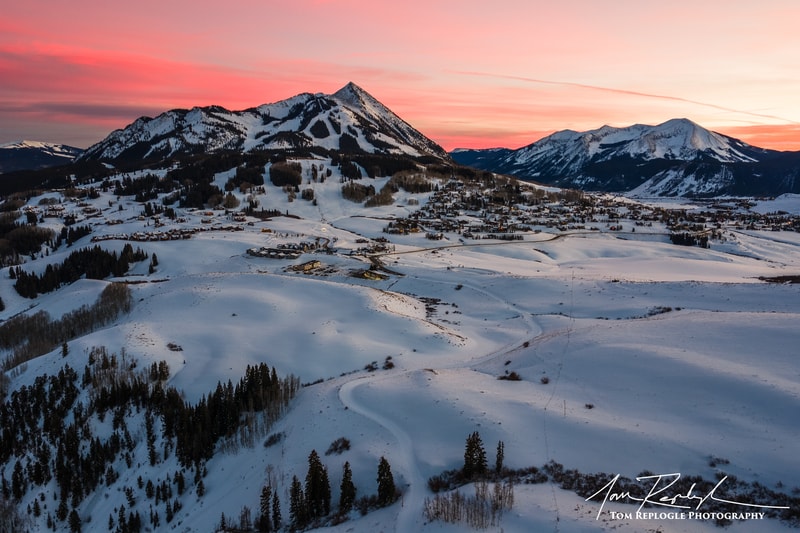 Final Photoshop touches elevate an image to print quality
Final Sharpening
Use high-pass filter or smart sharpen:
- Create sharpening specifically for output size
- Different sharpening for web vs. print
- Fade sharpening to 70-80% opacity
Phase 7: Print Preparation (10 minutes)
For images going to print:
Soft Proofing:
- Use printer/paper profiles
- Check gamut warnings
- Adjust colors for specific output
Resizing:
- Use Photoshop’s Preserve Details 2.0
- Add noise reduction if upscaling significantly
- Apply output sharpening
Color Space:
- ProPhoto RGB during editing
- Convert to sRGB for web
- Adobe RGB or ProPhoto for printing
My Workflow Principles
Non-Destructive Everything
Every adjustment is reversible. I use adjustment layers in Photoshop and never work directly on the background layer.
Process with Intent
Every adjustment serves the image’s vision. Random slider pushing wastes time and degrades quality.
When to Stop
The hardest part of post-processing is knowing when to stop. If I find myself endlessly tweaking, I step away for a day and return with fresh eyes.
Save Incrementally
I save versions throughout processing:
Image-01-Basic.psdafter global adjustmentsImage-02-Local.psdafter local workImage-03-Final.psdready for output
Tools and Presets
While I don’t rely on presets, I do use:
- Custom Lightroom develop presets for initial settings
- Photoshop actions for repetitive tasks
- Saved layer styles for common adjustments
Time Management
A typical workflow timeline:
- Import/Cull: 30 minutes per shoot (20-30 images)
- Basic processing: 10-15 minutes per keeper
- Advanced processing: 30-60 minutes per portfolio piece
- Print prep: 10-15 minutes per final image
The Most Important Rule
Post-processing should enhance what’s already in the image, not create something that wasn’t there. If you find yourself dramatically transforming an image, you probably captured the wrong scene.
Great photography happens in-camera. Post-processing is about realizing the potential that was captured, not manufacturing something artificial.
This workflow has evolved through thousands of images and continues to refine. The key is consistency—develop a repeatable process that becomes second nature, then you can focus on the creative decisions that truly matter.